Get the Details You Need Before They Sign
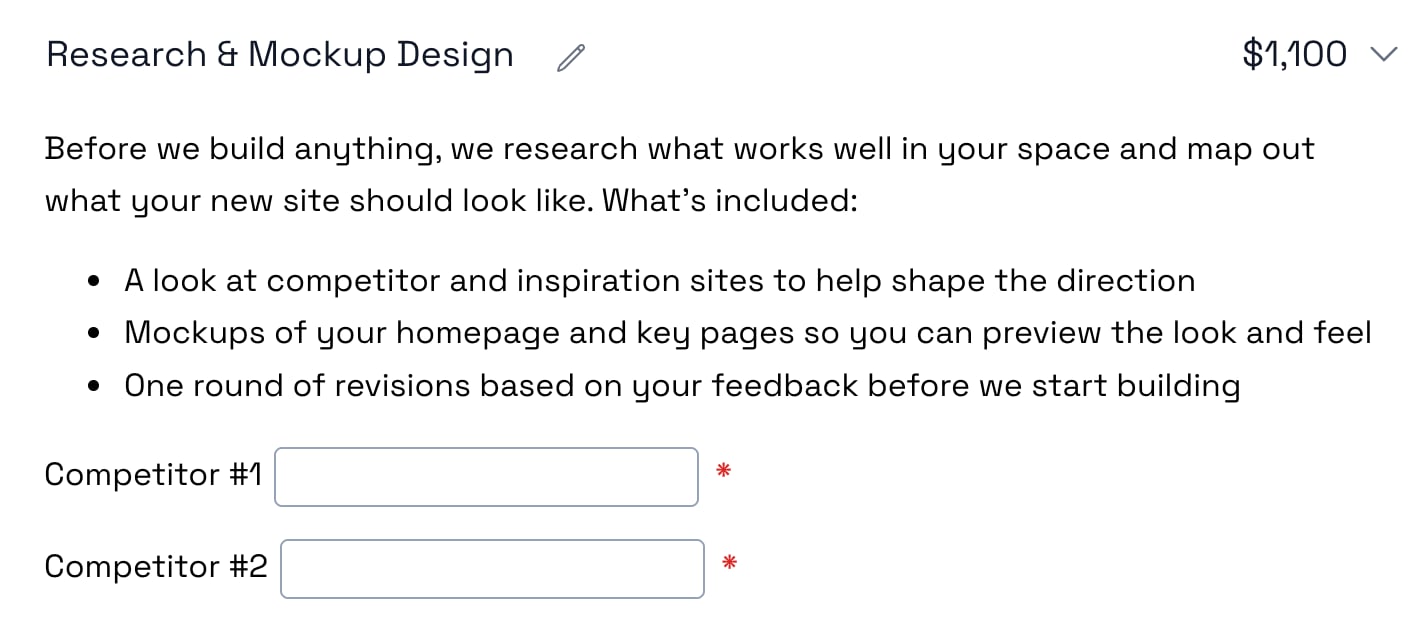
You know the drill. The proposal gets signed, and then the follow-up emails start. What's your PO number? When do you want to kick off? Who are your main competitors? Half the answers come back a week later, and one of them never comes back at all.
Fields put those questions right inside the proposal. Add a text box, a date picker, or a dropdown anywhere in your content, and your client fills it in while they review. Make a field required, and they can't sign until it's answered.
Add a Field in About Ten Seconds
Fields live in the same editor you already use for your content. No form builder, no separate questionnaire, no extra link to send.
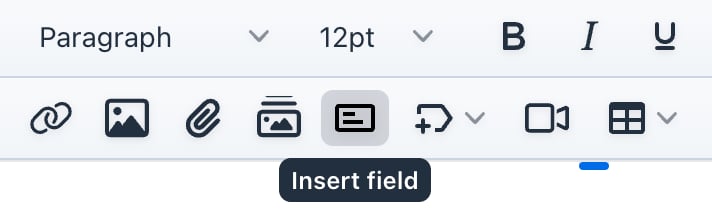
Click Insert Field
Put your cursor where the question belongs. It can be on a content page, in a line item or group description, or on an add-on. Then click Insert field in the toolbar.
Pick a Type and a Label
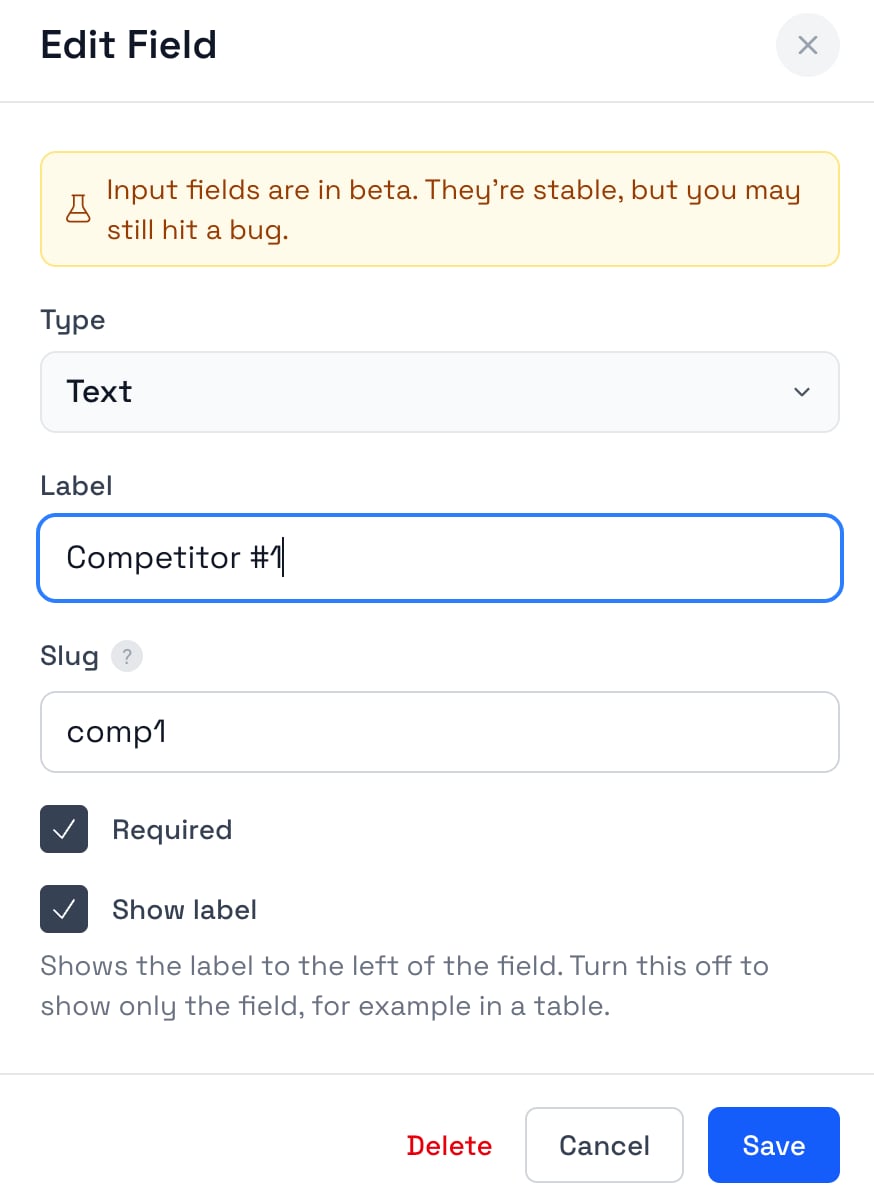
Choose text, date, dropdown, checkbox, or radio buttons, then give it a label your client will understand. Leave Required on if they have to answer before signing.
Send It
Your client sees a real input right in the proposal, next to the work it relates to. They fill it in as they read, and the answer saves with the proposal.
Ask Exactly the Question You Mean
Pick the input that fits the answer. A date gets a calendar, a list gets a dropdown, and a short answer gets a text box.
Text
A short written answer. The workhorse for anything only your client knows.
Date
Your client picks from a calendar, so you never have to decode "early next month."
Dropdown
One answer from a list you write. Clean data, no creative spelling.
Checkbox
A quick yes or no. Required checkboxes have to be ticked before signing.
Radio Buttons
Every option visible at once, and your client picks one. Great when the choices need to be compared.
Required or Optional
Any field can be either. If a required one is empty, your client is taken straight to it.
Small Feature, Lots of Follow-Up Emails Saved
A field is just a blank in your proposal. These are the parts that make it worth using.
Required Means Required
Mark a field required and the Sign and Accept buttons wait until it's filled in. If your client misses one, Go to Field scrolls them right to it. No more signed proposals with a blank where the PO number should be.
Fill It In Ahead of Time
Already know the answer from your discovery call? Type it in before you send. Your client sees it filled in and only has to check it.
Saved With Your Library
Save a line item with fields in it to your library, and the fields come along every time you use it. Build your intake questions once, then reuse them on every proposal.
Every Answer Is Logged
Answers show up in the proposal's activity as your client fills them in, so you can see what they entered and when without chasing anyone.
Locked Once It's Signed
After the proposal is signed, the answers lock with it. What your client agreed to and what they told you stay together in one document.
Pull Answers Into Your Systems
Every field gets a short name called a slug. Use it to read the answer through the API (Business plan) or from an AI agent over MCP, and send it wherever your workflow needs it.
Want to see fields on one of your proposals?
Every Team Has Questions It Asks Every Client
Here are the fields we see teams adding first.
IT Companies & MSPs
Seat counts, site locations, and a go-live date decide how onboarding goes. Ask for them in the managed services line item, and you'll have them before the welcome call.
Marketing Agencies
Put the intake questions inside the services they belong to. Competitors go under research, brand colors go under design, and the launch date goes under the campaign.
Consultants
Get the paperwork details that procurement asks for at the last minute, collected and signed with the engagement itself.
Web & Development Shops
Find out who owns the domain and where the site will live before the build starts, not halfway through it.
Fields sit right alongside your interactive pricing tables and terms, so your client picks the services, answers the questions, and signs, all in one place.
Stop Collecting Client Info After the Deal Closes
The best time to ask is while your client is already paying attention. That's when they're reading your proposal.
No Follow-Up Email Chain
The questions go out with the proposal, and the answers come back with the signature. Nothing to chase after the deal closes.
Faster Kickoffs
Your team starts with the details it needs on day one, instead of waiting a week for a questionnaire to come back.
Answers in Context
A question about hosting sits next to the hosting line item, so your client understands why you're asking.
One Signed Document
The scope, the price, and the client's answers are all in the same proposal. No separate form to file or lose.
The Same Questions, Every Time
Save fields with your library items, and every rep asks the same intake questions in the same way.
Easier for Your Client
They're already reading the proposal. Answering a few questions there takes a minute, not another login.
Get the Answers With the Signature
Fields FAQ
Common questions about adding fillable fields to a proposal and collecting client details before they sign.
What are fields in Smart Pricing Table?
Fields are blanks your client fills in right on the proposal, like a PO number, a start date, or a choice from a list. You add them in the editor wherever the question belongs, and your client answers while they review. The answers save with the proposal.
What types of fields can I add?
Text, date, dropdown, checkbox, and radio buttons. Dropdowns and radio buttons use a list of options you write, so you get clean answers instead of free-form text.
Where can I put a field?
On content pages, in line item and group descriptions, and on add-ons. If you use Dynamic Terms, you can put them in a line item's terms too. Look for the Insert field button in the editor toolbar.
Can I require a field before my client signs?
Yes. Fields are required by default. A required field keeps the Sign and Accept buttons from going through until it's filled in, and your client gets a Go to Field button that scrolls them straight to whatever they missed. Turn Required off for anything optional.
Can I fill in a field for my client ahead of time?
Yes. If you already know the answer, type it in before you send. Your client sees it filled in and only has to check it.
Do fields save with library items?
Yes. Save a line item with fields in it to your library, and the fields come along every time you add that line item to a proposal. Each copy gets its own unique slug, so answers never collide.
How do I see what my client entered?
The answers show in the proposal itself and in the proposal's activity as your client fills them in. Every field also has a slug, so you can read its answer through the API or from an AI agent connected over MCP.
Which plans include fields?
Every plan. Fields are part of the core proposal editor, so there is nothing to turn on.