Every Line Item Can Carry the Details You Track
A SKU. A warranty date. A model number, a color, a lead time. The details that make a line item yours usually end up in a spreadsheet, a sticky note, or retyped into every description.
Line item custom fields give every line item a place for them. Define your fields once, fill them in on each item, and drop any value into a description or terms in a couple of clicks. It stays with the line item everywhere it goes.
Define Once. Fill In Fast. Show It Anywhere.
No spreadsheet on the side and no retyping the same specs into every description.
Set Up Your Fields Once
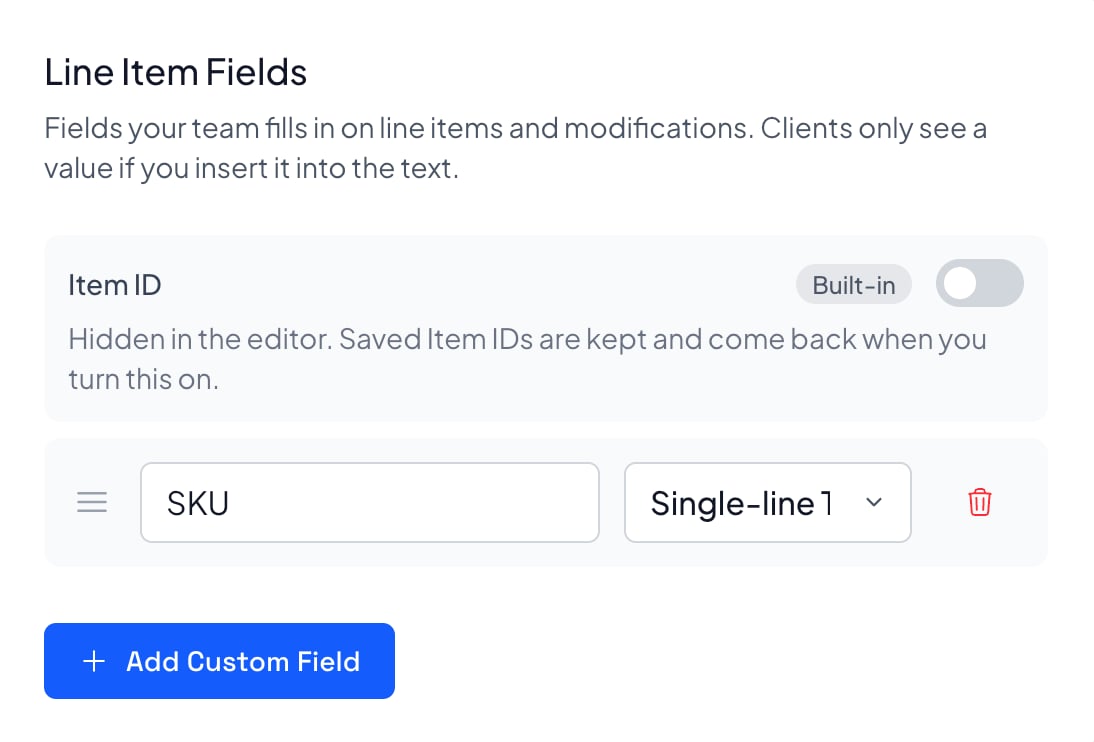
In Settings, click Add Custom Field. Give it a label like SKU or Warranty Date and pick a type. Every line item in your account gets it, across proposals, templates, and your Library.
Fill Them In on Each Line Item
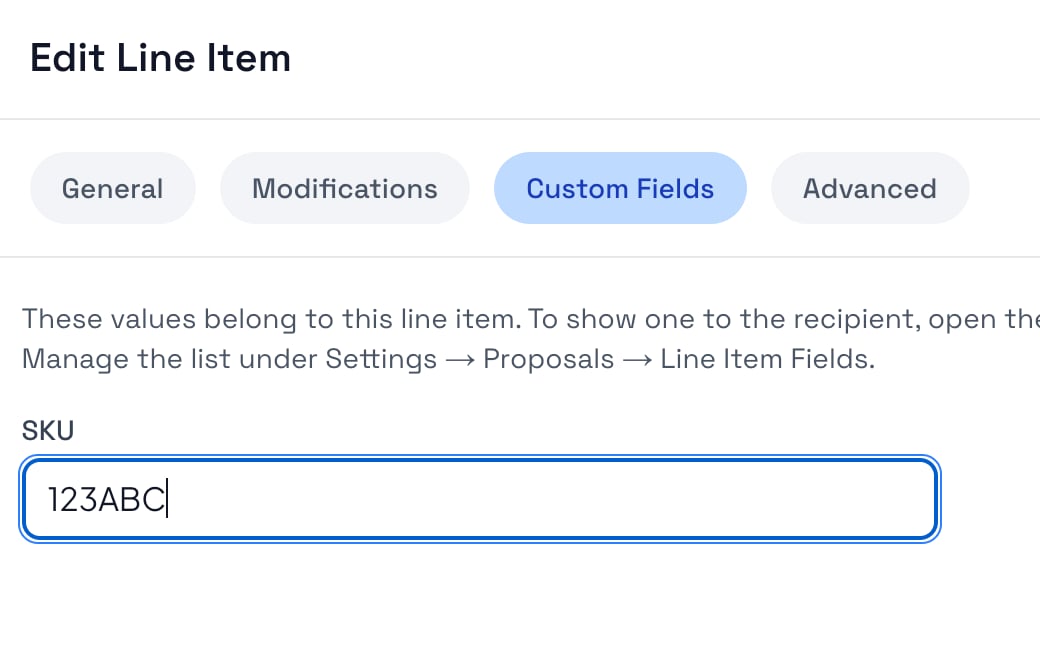
Open a line item and click the Custom Fields tab. Type the SKU, pick the date, choose from the dropdown, and save. That is it.
Show a Value Where It Helps
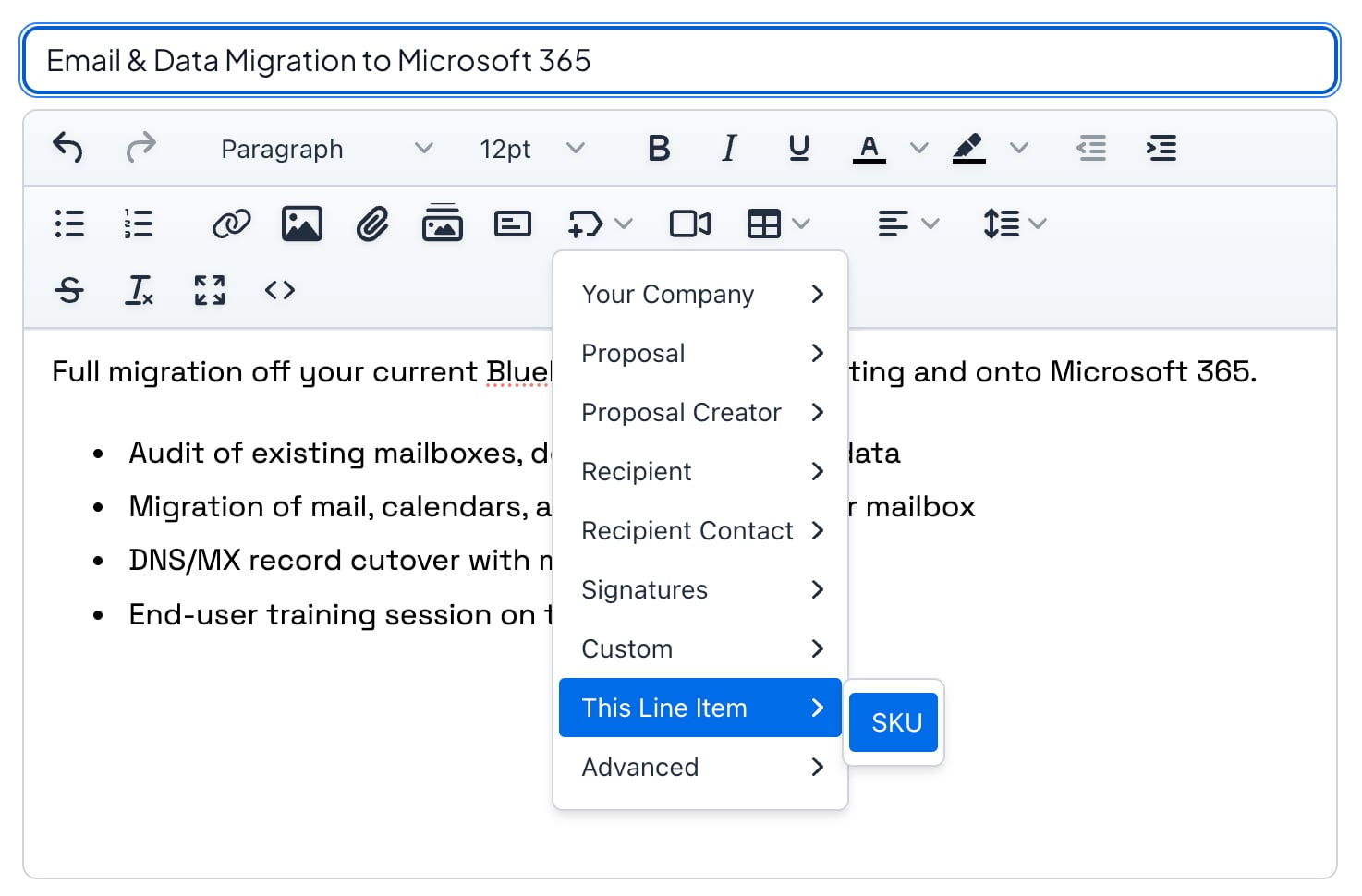
In a description or terms, click Insert variable, then This Line Item, and pick the field. The value fills in for that line item, and your client sees it right where it belongs.
The Right Input for Every Detail
A date gets a calendar, a list gets a dropdown, and a long spec gets room to breathe.
Single-line Text
Short identifiers your team looks up every day.
Multi-line Text
Specs and notes that need more than one line. Line breaks carry through to the proposal.
Number
Counts and quantities you want to keep as real numbers.
Date
Pick it from a calendar, then show it in whichever date format reads best.
Dropdown
Your own list of options, so everyone on the team picks the same words.
Private Until You Place It
Your client only sees a value when you insert it into text they read. Everything else stays with your team.
The Right Detail, Right Under the Price
Put the model number, warranty date, or finish right into the line item description. Your client reads exactly what they are buying, and you type it once.
Specs that are always right
The description reads the value from the line item, so a changed SKU or date never leaves an old one behind in the text.
Works in modifications and terms
An add-on like an extended warranty can show its parent item’s model number. With Dynamic Terms, line item terms can name the warranty end date.
Empty values are easy to spot
A field you have not filled in shows a blue marker instead of a blank, so you catch it before your client does.
Your Catalog, Built Into Every Proposal
Custom fields turn your Library into a real product catalog, without another system to keep up to date.
Saved With Your Library
Fill in the SKU and specs on a library item once. The values come along every time you add it to a proposal, duplicate it, or start from a template.
Find Items by Their Details
Filter your line item library by any custom field. Pull up every item from one vendor, or every warranty that ends before next year, in seconds.
Private by Default
Custom fields are for your team. Your client never sees the Custom Fields tab, and a value only shows up where you choose to insert it.
Linked Items Stay in Sync
Update a value on a linked library item, and every template using it picks up the change. One fix instead of twenty.
Safe to Change Your Mind
Rename a field, reorder your list, or retire one you no longer need. Values already saved on your line items stay put.
Ready for Your Other Tools
Read and write custom field values through the API, or let an AI agent fill them in over MCP. Your catalog data goes where your workflow needs it.
Want to see custom fields with your own catalog?
Every Business Tracks Something Different
You choose the fields, so they fit the way you sell. Here are a few we see teams set up first.
IT Companies & MSPs
Hardware and licenses come with part numbers, vendors, and warranty dates. Keep them on the line item, and every quote shows the exact model your client is buying.
Anyone Who Quotes Products
Equipment, furniture, signage, fixtures. If the color, size, or lead time changes the order, it belongs on the line item, not in a side note.
Marketing Agencies
Package your services with the details that set expectations: how many deliverables, how many revision rounds, and which channel it runs on.
Consultants
Tag each service with the codes your back office needs, so finance knows exactly how to bill the engagement once it is signed.
Custom fields live on the line items in your Library and work with terms and profit margins, so the full story of every product you sell is saved in one place.
Quote Products Like You Have a Catalog. Because Now You Do.
The details behind every line item, saved once and ready on every proposal you send.
Retire the Side Spreadsheet
Part numbers and warranty dates live on the line item itself, not in a file only one person knows how to find.
Type It Once
Enter a detail on the line item and reuse it in the description, the terms, and every add-on. No more copy and paste.
Fewer Quoting Mistakes
The description reads the value from the line item, so the model number your client sees always matches the one you saved.
Every Rep Quotes the Same Way
Dropdowns and shared fields mean your whole team describes products in the same words, on every proposal.
Smoother Handoff After the Sale
The SKU, vendor, and lead time are saved on every line item in the deal, so purchasing and delivery know exactly what was sold.
Included With Business
Line item custom fields come with the Business plan. Add your first field in under a minute.
Give Every Line Item the Details It Deserves
Line Item Custom Fields FAQ
Common questions about tracking SKUs, warranty dates, and other details on your proposal line items.
What are line item custom fields?
They are fields you add to every line item in your account, like SKU, Warranty Date, or Color. Your team fills them in on the Custom Fields tab of a line item, and you can show any value to your client by inserting it into a description or terms.
What types of custom fields can I create?
Single-line text, multi-line text, number, date, and dropdown. Dropdowns use a list of options you write, so everyone on your team picks the same values.
Will my client see my custom fields?
Only where you put them. Custom fields are private to your team by default. To show a value, click Insert variable, then This Line Item, in a line item description or terms, and pick the field. Add-ons can show their parent line item's values the same way.
How are these different from fields my client fills in?
Line item custom fields hold details your team enters, like a part number or warranty date. Fields are blanks your client fills in on the proposal, like a PO number or start date. Use custom fields to describe what you sell, and fields to collect answers from your client.
Do custom field values save with library items?
Yes. Values travel with the line item when you save it to your library, add it to a proposal, duplicate it, or build a proposal from a template. Linked library items keep their templates in sync, and you can filter your line item library by any custom field.
What happens if I delete a custom field?
It disappears from the Custom Fields tab, but the values already saved on your line items stay put. You can rename fields and change their order at any time too.
Can I read or update custom fields through the API?
Yes. You can read and update custom field values through the API, and AI agents connected over MCP can read and fill them in too.
Which plans include line item custom fields?
The Business plan. Add your first field in Settings under Line Item Fields. There is nothing extra to turn on.