To make your proposal PDF full bleed in Smart Pricing Table, open the proposal, click Design in the black top bar, expand the PDF panel, turn on Full Bleed Backgrounds, and click Save. Your page backgrounds then run all the way to the edge of every PDF page, with no white frame around them.
The reason this post exists: you spend real time getting a proposal to look right on screen, and then the PDF puts a white border around all of it.
Why does my proposal PDF have a white border?
Until now, every PDF page came with a white margin. The background image or color stopped short of the edge, so the design sat inside a white frame like a photo on a page.
For a lot of proposals that was fine. For the ones with a photo cover, a dark theme, or a bold brand color, it was the first thing you noticed. The web version looked finished. The PDF looked like a printout of the web version.
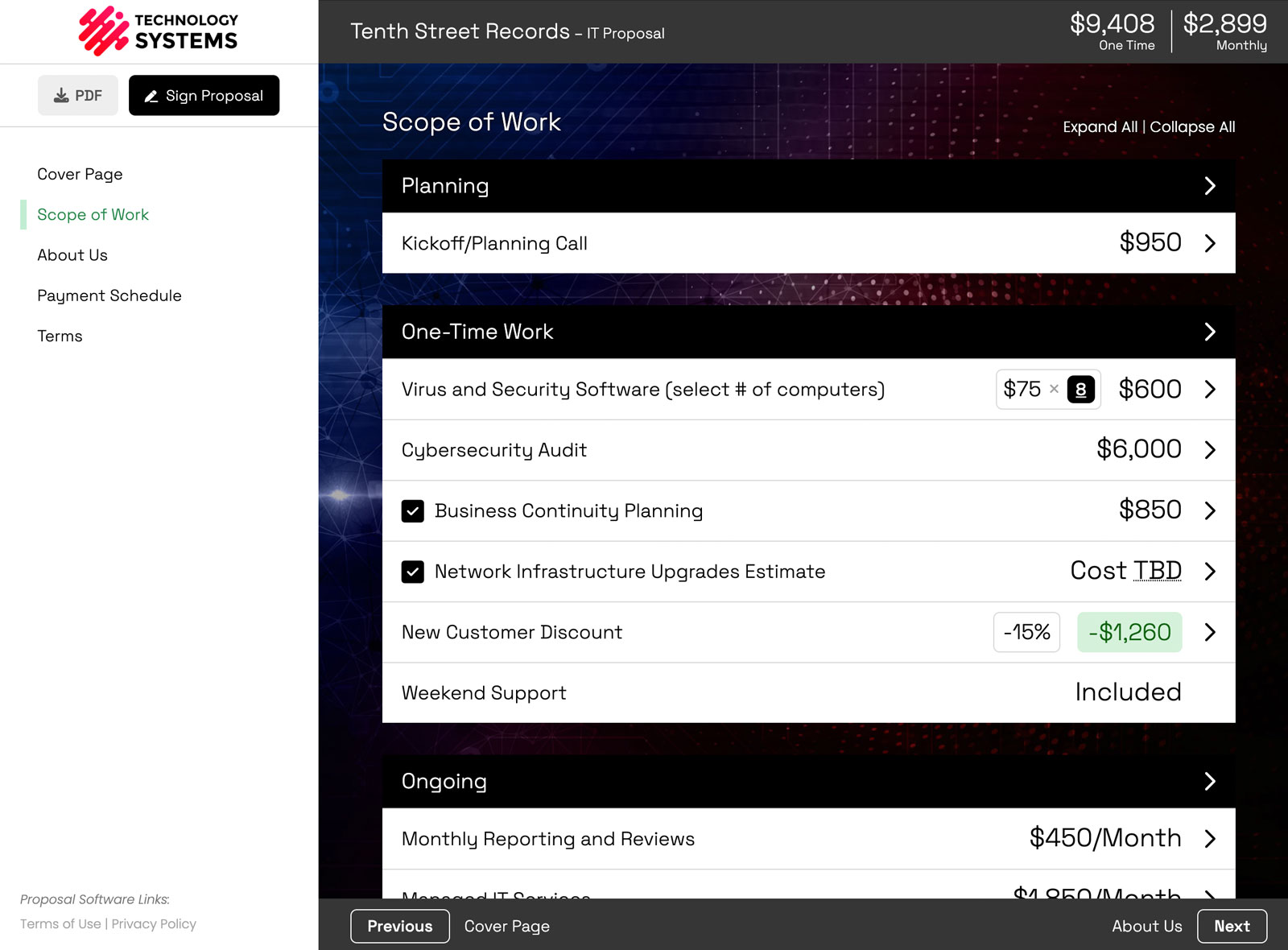
What full bleed looks like on a real proposal
Here is the same cover page exported both ways. Same background, same layout, same content. The only difference is the toggle.


Which proposals benefit the most?
Any proposal where the background is part of the design, not just a light tint behind the text:
- Full-page photo covers that should fill the whole first page.
- Branded color backgrounds that should not stop short at a white frame.
- Dark or bold designs, where a white border stands out the most.
- Textured or patterned backgrounds that look cut off when they end early.
If you already put work into a branded proposal that matches your website and your pitch deck, this is what carries that look into the PDF.
How to turn on Full Bleed Backgrounds
It is off by default, so nothing changes until you turn it on.
- Open your proposal and click Design in the black top bar to open Design Settings.
- Expand the PDF panel at the bottom of the list.
- Turn on Full Bleed Backgrounds.
- Click Save at the top of the drawer.
- Download the PDF and look it over before you send it.
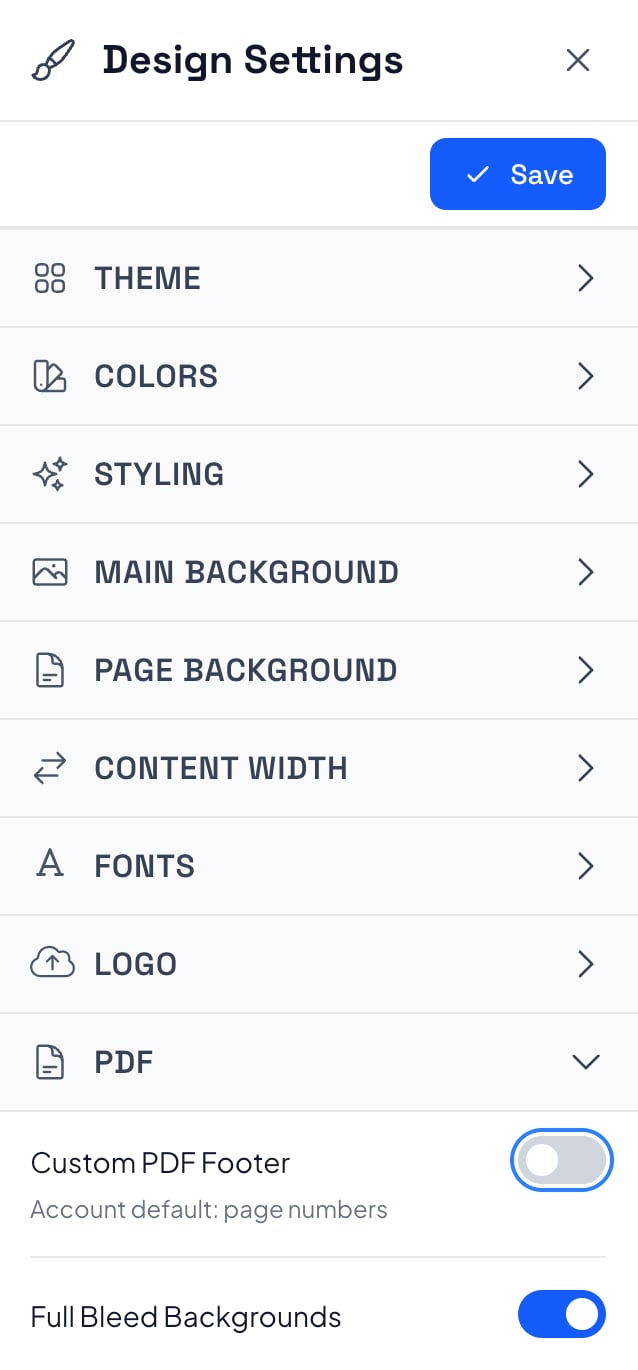
The setting is saved on that proposal (or template), not across your whole account. So if you want every proposal from a template to export full bleed, turn it on in the template too.
If you build proposals with an AI assistant, a connected AI agent can turn this setting on for you as well.
Does full bleed change how the online proposal looks?
No. It is a PDF setting. The live proposal your client opens in the browser looks exactly the same. Only the downloaded PDF changes.
Where does the background itself come from?
From your normal design settings. Set the background for every page under Page Background in the same Design Settings drawer, or give a single page (like a photo cover) its own background with that page's Design button. Full bleed just lets whatever background you picked reach the edge of the PDF page.
Why can't I see the Full Bleed Backgrounds toggle?
Check whether Hide Page Backgrounds is turned on in the same PDF panel. That setting does the opposite job: it prints the PDF on plain white pages, with no background colors or images at all, which some clients prefer for printing.
The two cannot both apply, so while Hide Page Backgrounds is on, Full Bleed Backgrounds is ignored and hidden. Turn Hide Page Backgrounds off and the toggle comes back, set the way you left it.
The PDF panel is also where the Custom PDF Footer lives, if you want something other than plain page numbers at the bottom of each page.
Check your PDF before you send it
Full Bleed Backgrounds is new and still in beta. It works well on the proposals we have tested, but every design is a little different. So after you turn it on, download the PDF and give it a quick look before it goes to a client.
One more practical note: most office printers cannot print all the way to the edge of the paper, so a client who prints the PDF will still see a thin unprinted strip. That is the printer, not the file. Keep important text a comfortable distance from the edges and it will read fine either way.
Who gets the most out of this
Agencies tend to notice it first, because their proposals double as a sample of their design work. A white frame around a creative cover undercuts the pitch. IT and MSP shops with dark, branded themes see it too, since a dark page with a white border is the most obvious version of the problem.
And plenty of clients still pass the PDF around internally, to a partner, a board, or finance. Most PDFs die unread, which is exactly why the one that does get forwarded should look as finished as the live proposal.
Smart Pricing Table is interactive proposal software with live pricing tables for agencies, IT companies, and consultants. Full bleed PDFs make sure the version that leaves the browser looks as good as the one that stays in it.
or start a free trial and try it yourself.
Explore more
Your colors, fonts, and logo on every page
Live totals clients can adjust
See finished proposal designs
Frequently Asked Questions
How do I make a proposal PDF full bleed in Smart Pricing Table?
Open the proposal, click Design in the black top bar, expand the PDF panel, turn on Full Bleed Backgrounds, and click Save. Then download the PDF to check it. Your page backgrounds will run to the edge of every page.
Why does my proposal PDF have a white margin around each page?
By default, Smart Pricing Table PDFs keep a white margin around every page, so the background image or color stops short of the edge. Turning on Full Bleed Backgrounds in Design Settings → PDF removes that margin for page backgrounds.
Is Full Bleed Backgrounds on by default?
No. It is off by default and saved per proposal or template, not account-wide. Turn it on in a template if you want proposals built from it to export full bleed.
Does full bleed change the online version of the proposal?
No. It only affects the downloaded PDF. The live proposal your client views in the browser looks the same either way.
Why is the Full Bleed Backgrounds toggle missing?
Hide Page Backgrounds is probably on. That setting prints the PDF on plain white pages, so full bleed is ignored and hidden while it is on. Turn Hide Page Backgrounds off and Full Bleed Backgrounds reappears with its saved value.
Will a full bleed PDF print edge to edge?
The file goes edge to edge, but most office printers cannot print to the very edge of the paper, so printed copies usually show a thin unprinted strip. Keep important text away from the page edges so it reads well on screen and on paper.
Is the full bleed PDF feature still in beta?
Yes. It is new and in beta, so download your PDF and look it over before sending it to a client, especially on proposals with complex background images.
You might also like:
👉 The Proposal Graveyard: Why Most PDFs Die Unread
👉 Proposal Version Control: Revise a Sent Proposal Without a New Link