Three new features just shipped in Smart Pricing Table: volume pricing that drops the unit price as the quantity climbs, saved email templates so you stop retyping the same send message, and custom variables you can add or delete on a single template or proposal.
All three came out of the same complaint, said three different ways: I keep doing this by hand.
Here is what each one does, where to find it, and who it helps most.
- Volume pricing for line items and modifications that have a quantity
- Email templates for the message you send with a proposal
- Custom variables you can manage per template and per proposal
1. Volume pricing: set unit prices that change with quantity
Volume pricing lets you charge a different unit price for different quantity ranges on the same line item. 1 to 25 units at $100 each. 26 to 50 at $85. 51 to 500 at $75. Your client changes the quantity, and the rate follows.
There was a workaround for this before, and it was clunky. Now it is built into the quantity settings.
How to turn on volume pricing
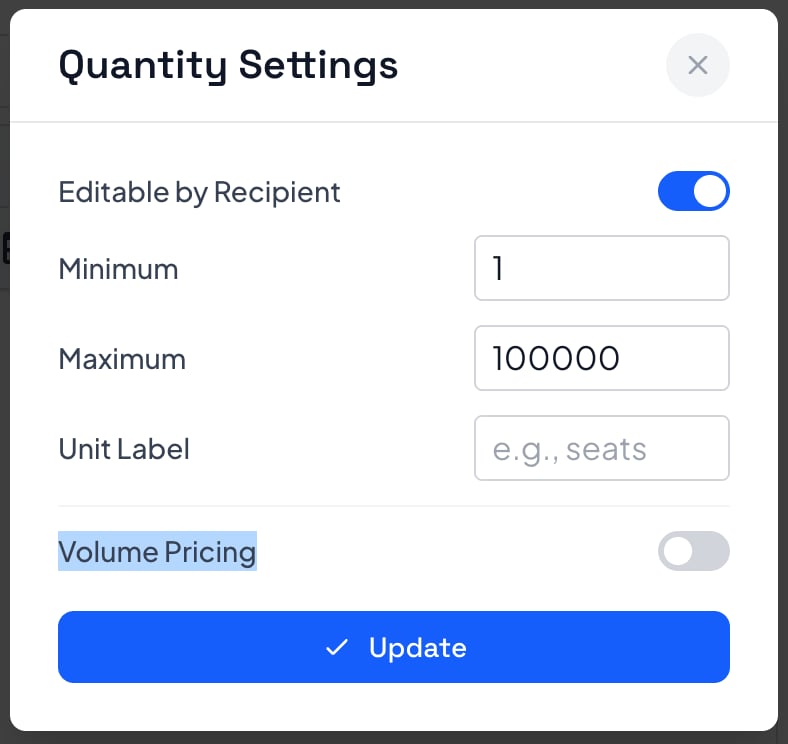
Open the quantity configure pop-up on any line item or modification with a quantity, then flip the Volume Pricing toggle.
Then add your ranges. Each one takes a From, a To, and a unit price. The first range uses the item's existing cost, so you are only entering the prices that step down from there.
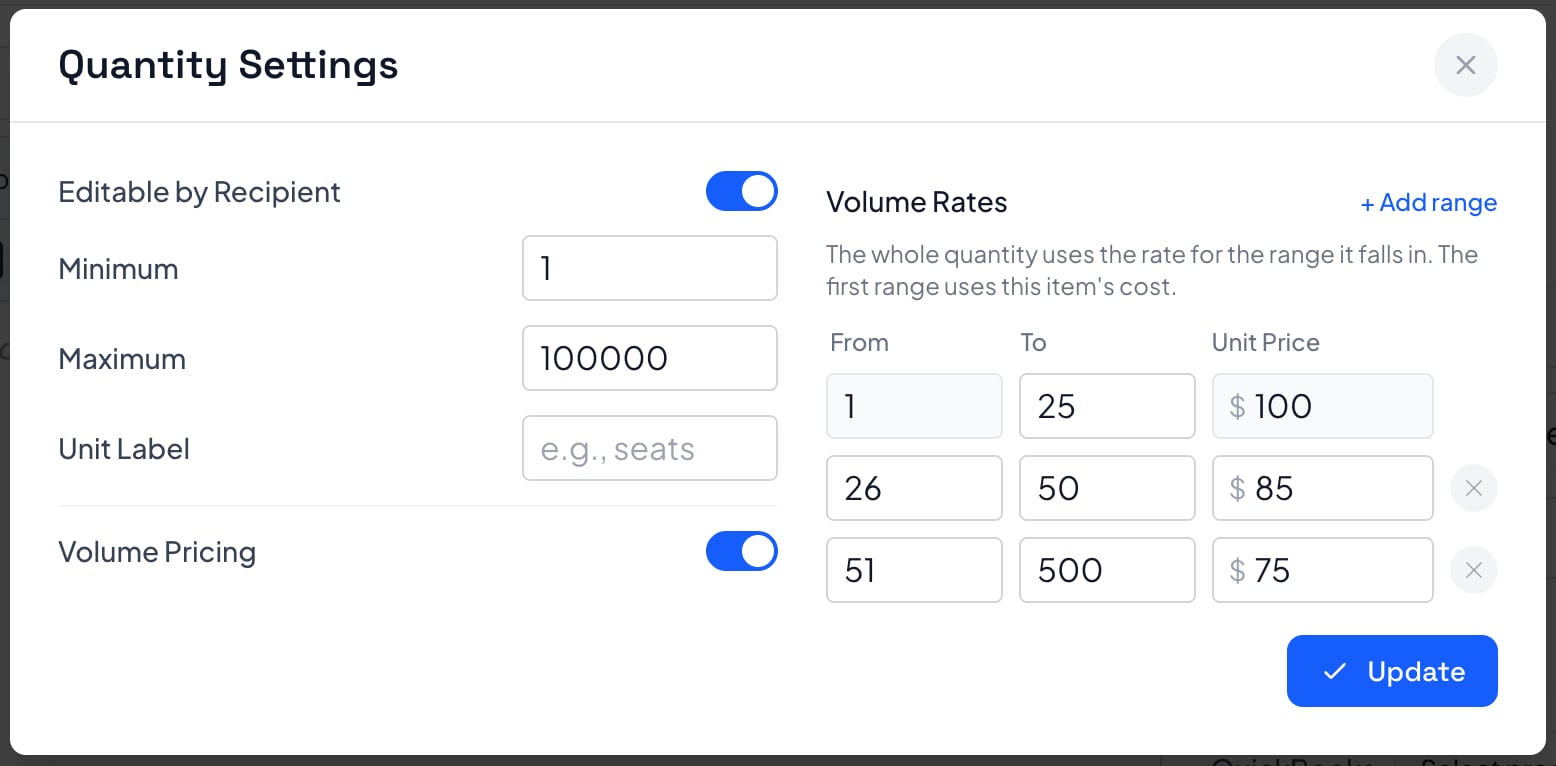
Does the lower rate apply to every unit, or only the extras?
Every unit. This is the detail people want nailed down, so to be exact: the whole quantity uses the rate for the range it falls in. It is not graduated pricing, where the first 25 stay at $100 and only the units above that get the discount. At a quantity of 28, all 28 units are priced at $85.
What your client sees
This is the part that actually moves deals. When your client opens the quantity selector, they get the full rate card with their current range highlighted, plus the unit price they are getting right now.
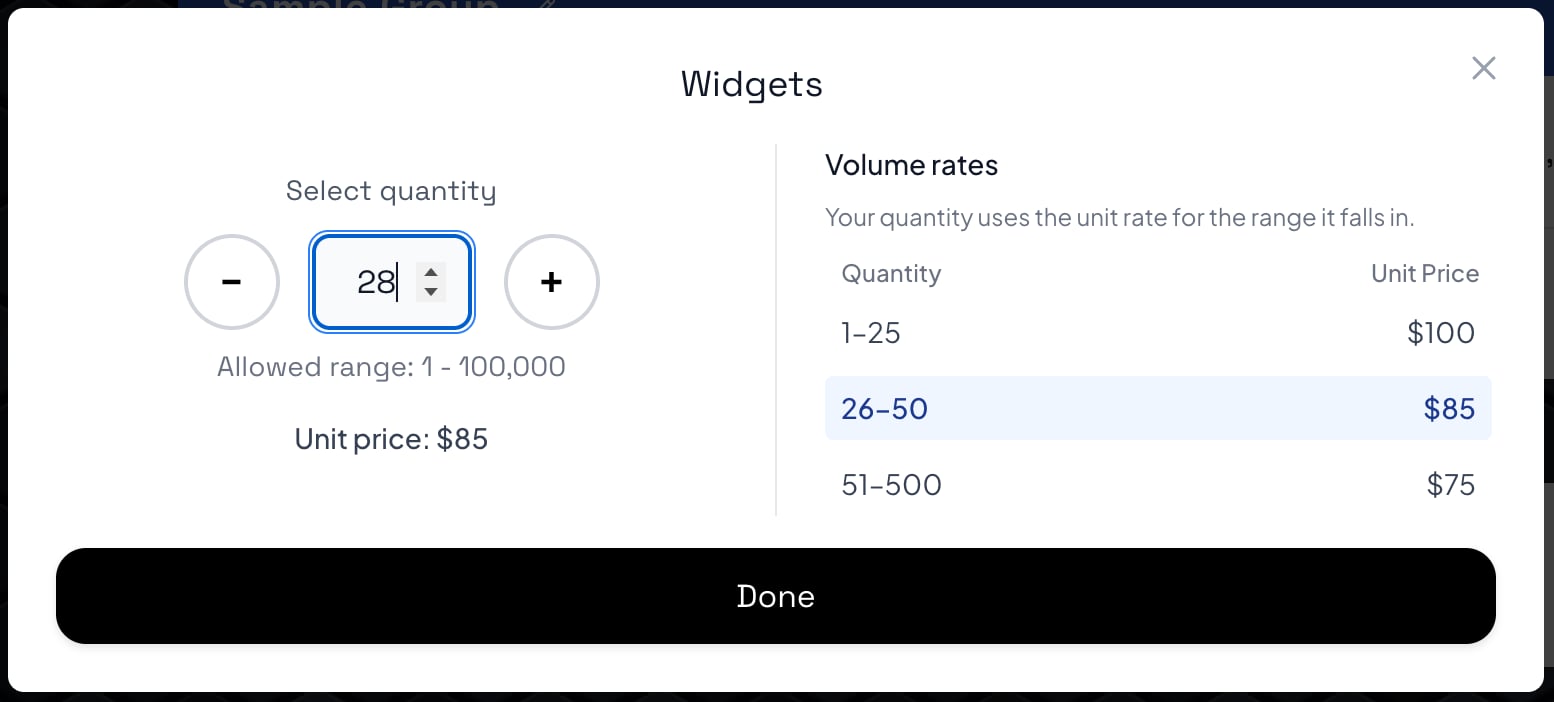
Your minimum and maximum still apply, so nobody selects 4,000 seats when you only sell up to 500.
Where this earns its keep: IT companies and MSPs quoting per seat, per device, or per endpoint, where the rate is supposed to come down at 50 users and again at 250. It works the same way for an agency selling per landing page, per location, or per ad set. There is a full walkthrough on the volume pricing feature page, and it behaves like everything else in an interactive pricing table: totals recalculate live as the client moves the number.
If you have been faking this with three fixed bundles, it is worth comparing that approach to offering multiple pricing options and letting the client dial in the quantity themselves.
2. Email templates: stop retyping the same send message
You can now save the email that goes out with a proposal as a reusable template and load it on the next send. Make as many as you want, edit them whenever, and drop in variables like the recipient's first name so each one still reads like you wrote it.
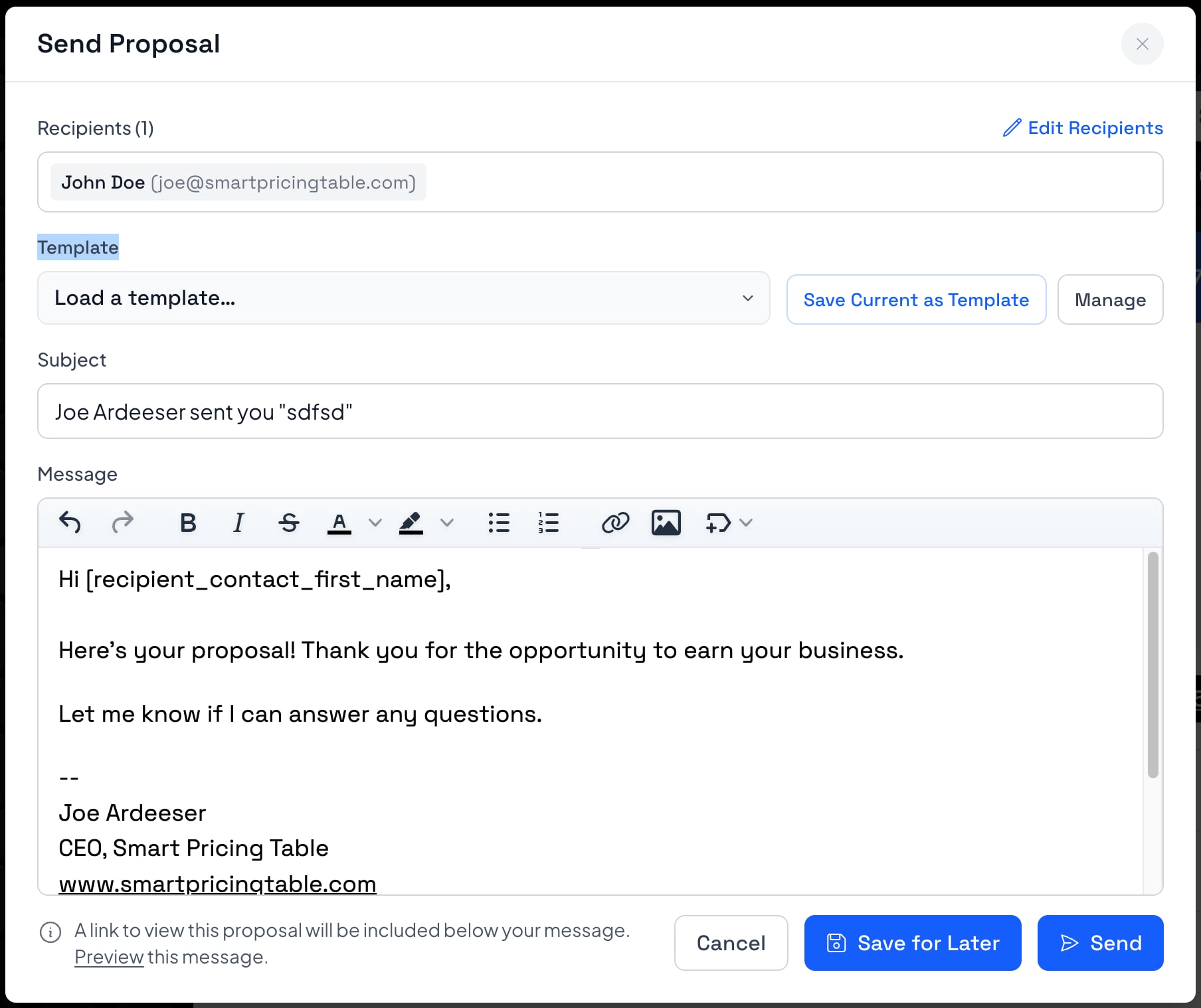
Three controls, and they do what they say. Load a template pulls in a saved message. Save Current as Template keeps the one you just wrote. Manage is where you edit and delete.
Most people land on two or three: the standard send, a shorter follow-up, and a more formal version for procurement. If more than one person on your team sends proposals, this is also the quiet way to make sure they all send the same message. Same logic as starting every project from a template, applied to the email that carries it.
3. Custom variables on individual proposals and templates
Custom variables used to live only in account settings. Now you can add, rename, and delete them on a single template or proposal.
Before this, you could change a variable's value on a proposal, but not the list itself. Every template inherited the same set whether it needed them or not.
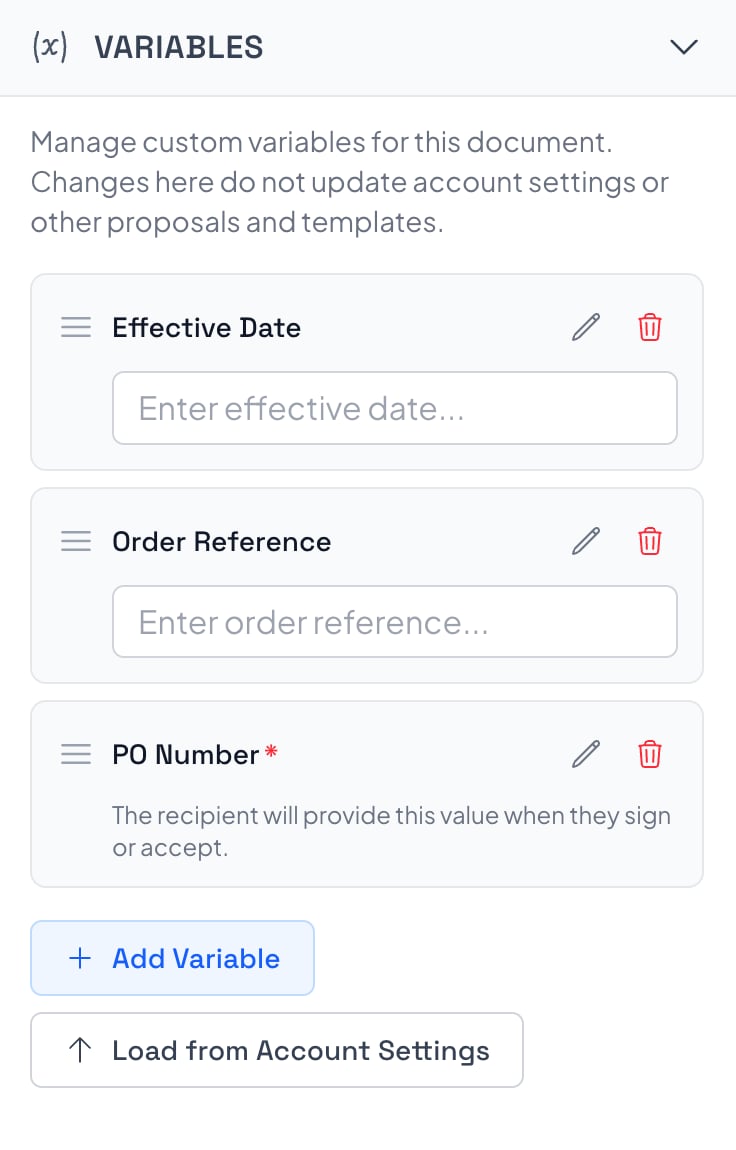
Open the Variables panel on a proposal or template and you can add a variable, rename one, delete one, or pull your defaults in with Load from Account Settings. Edits stay on that document. They do not touch your account settings or any other proposal.
Here is where it pays off. Say Template A needs an Effective Date and an Order Reference, and Template B needs a PO Number. Each template can now carry exactly the variables it uses, so creating a proposal from either one prompts you for the right fields instead of a superset with blanks you have to ignore.
What the three have in common
Nothing glamorous: each one removes a step you were doing by hand. Rebuilding tier prices as separate options. Retyping the send email. Working around variables that do not apply. Smart Pricing Table is interactive proposal software with live pricing tables for agencies, IT companies, and consultants, and most of what we ship looks like this. Take the repetitive part out of the middle of your day.
All three are live in your account right now. Nothing to enable, nothing to request.
or start a free trial and try it yourself.
Explore more
Tiered unit prices by quantity
Live totals clients can adjust
Per seat and per device quotes
Frequently Asked Questions
What is volume pricing in a proposal?
Volume pricing sets a different unit price for different quantity ranges, so the rate per unit drops as the order gets bigger. In a proposal, it means the client can change the quantity and watch the unit price update instead of emailing you for a requote.
Does the lower rate apply to the whole quantity or only the units above the range?
The whole quantity. In Smart Pricing Table the quantity uses the single unit rate for the range it falls in, so 28 units in a 26 to 50 range priced at $85 means all 28 units cost $85 each. It is not graduated pricing, where earlier units keep the higher rate.
How do I set up volume pricing on a line item?
Open the quantity configure pop-up on a line item or modification that has a quantity, turn on the Volume Pricing toggle, and add ranges with a From, a To, and a unit price. The first range uses the item's existing cost, and your quantity minimum and maximum still apply.
Can I save email templates for sending proposals?
Yes. The Send Proposal window has a Template field where you can load a saved email, save the current message as a new template, or manage the ones you already have. Templates support variables such as the recipient's first name, so a reused email still reads as personal.
What are custom variables in a proposal?
Custom variables are named fields such as Effective Date, Order Reference, or PO Number that you fill in once and reuse throughout a proposal's content. You can now manage the list of them per template and per proposal, not just in account settings.
Can different proposal templates use different variables?
Yes. Each template carries its own set of custom variables, so creating a proposal from Template A prompts for that template's fields while Template B prompts for its own. Changes made on a document do not affect account settings or other proposals.
You might also like:
👉 How to Put a Proposal On Hold (Without Marking It Lost)
👉 How to Add Proposal Numbers to Track Every Deal
👉 How to Edit HTML in Your Proposals (For Power Users)