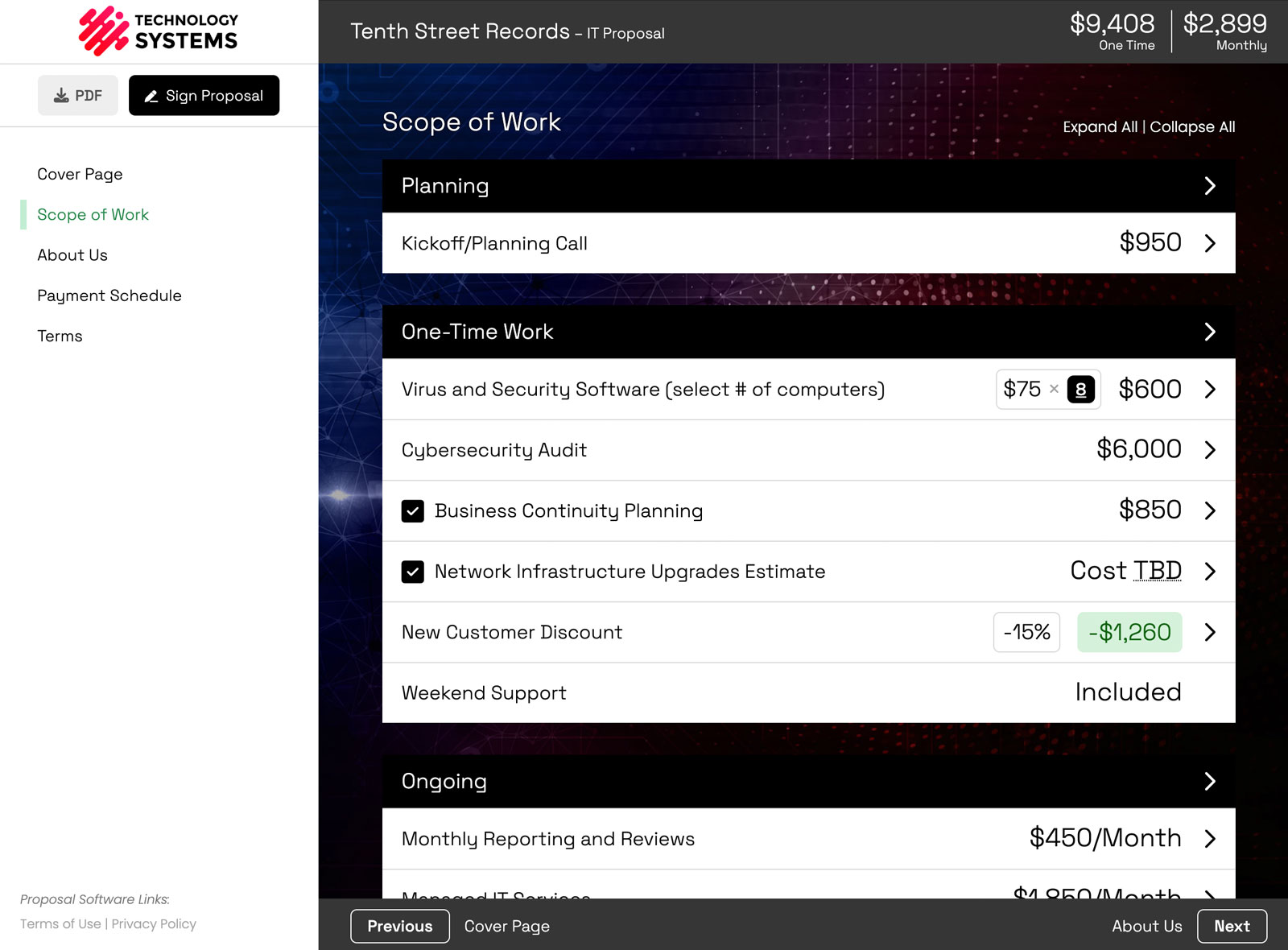
To make your proposal terms match what the client actually selected, turn on the Dynamic Terms add-on, write each service's terms on the Terms tab of its line item, then put the [dynamic_terms] variable on your terms page. When the proposal renders, that variable fills in with the terms from every selected, visible item, in the order they appear in the proposal.
The reason this post exists: one fixed block of terms has to cover everything you might sell, so it always describes a little work nobody bought.
Why one terms page never fits the deal
Think about the last time a client unchecked an optional service. The price updated. The scope updated. And the terms page still spelled out the rules for the thing they just said no to.
You have two bad choices at that point. Leave the extra clauses in, and the client reads contract language about work they are not buying. Or trim the page by hand after they choose, which is easy to forget and easy to get wrong the one time it matters.
The commercial version of this lives on the Dynamic Terms feature page. This post is the setup: where the terms go, what the variable does, and exactly which items make it onto the page.
What it looks like on a real proposal
Say you quote a website build with two optional add-ons: a monthly SEO retainer and paid ads management. Each one carries its own terms:
- Website build: revision rounds, content deadlines, who owns the files at launch.
- SEO retainer: the monthly term, the notice period, what reporting looks like.
- Paid ads management: ad spend approvals, who pays the platform directly, minimum run time.
Your client keeps the retainer and skips the ads. The terms page comes out with the website clauses and the retainer clauses, and not a word about ad spend approvals. You did not touch the terms page to make that happen.
How to add terms to a line item
- Click the line item, or its edit pencil, to open Edit Line Item.
- Open the Terms tab. It sits next to General, Modifications, and Advanced.
- Write the language that should only appear when this item is part of the deal. A bold heading with the service name, then a short paragraph, reads well on the finished page.
- Click Save.
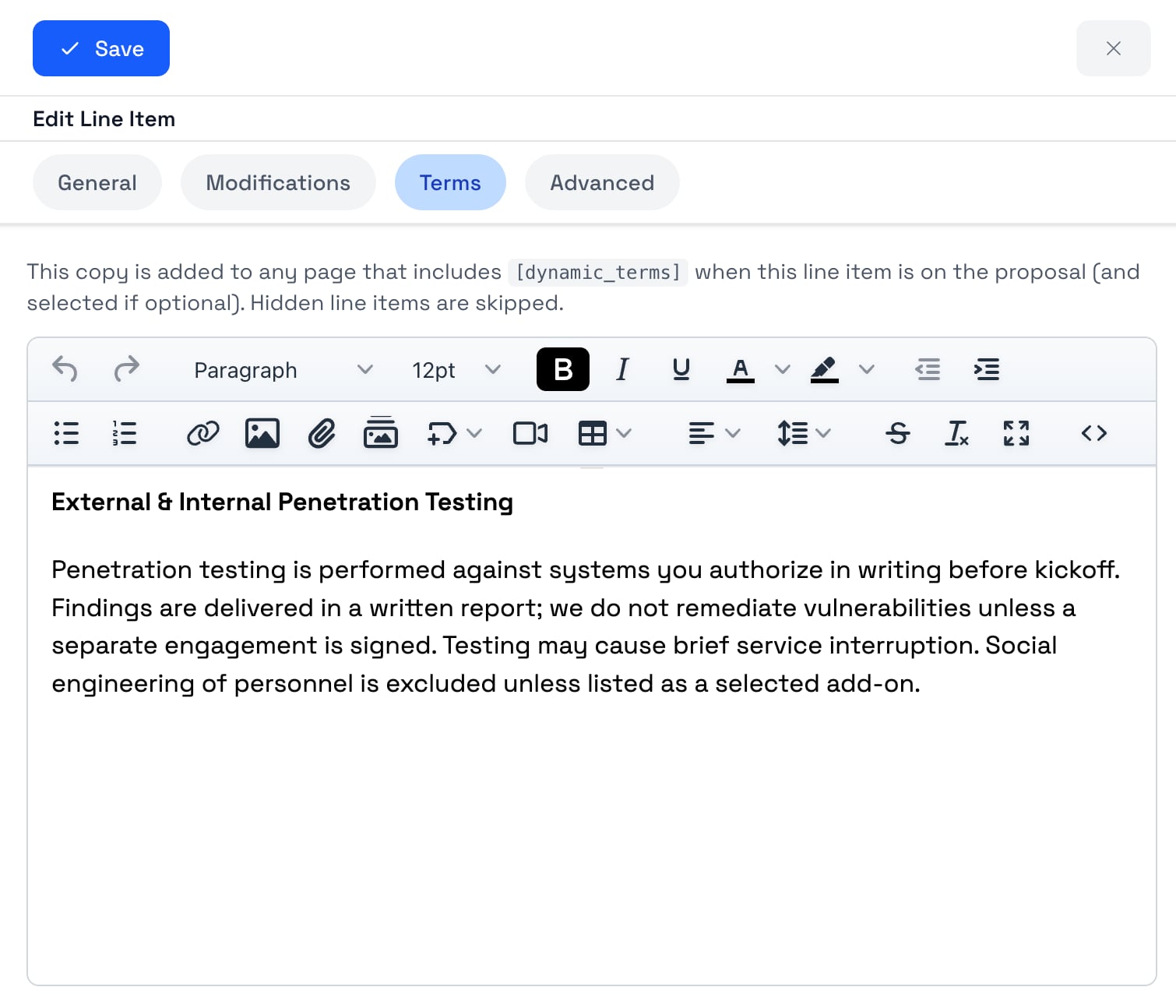
The Terms tab only appears once the add-on is on. It is included with the Business plan and is off until an Admin or Owner enables it from Add-ons in the left sidebar.
Where do terms go on an add-on or upsell?
Add-ons are modifications on a line item, and they hold terms the same way. Open the line item, go to the Modifications tab, click the gear next to the modification to open Advanced Options, and use the Terms tab next to Internal Notes.
That is where the ad spend clause from the example above belongs. It lives on the paid ads add-on, so it only comes along when the client checks that box.
How to put the terms on your terms page
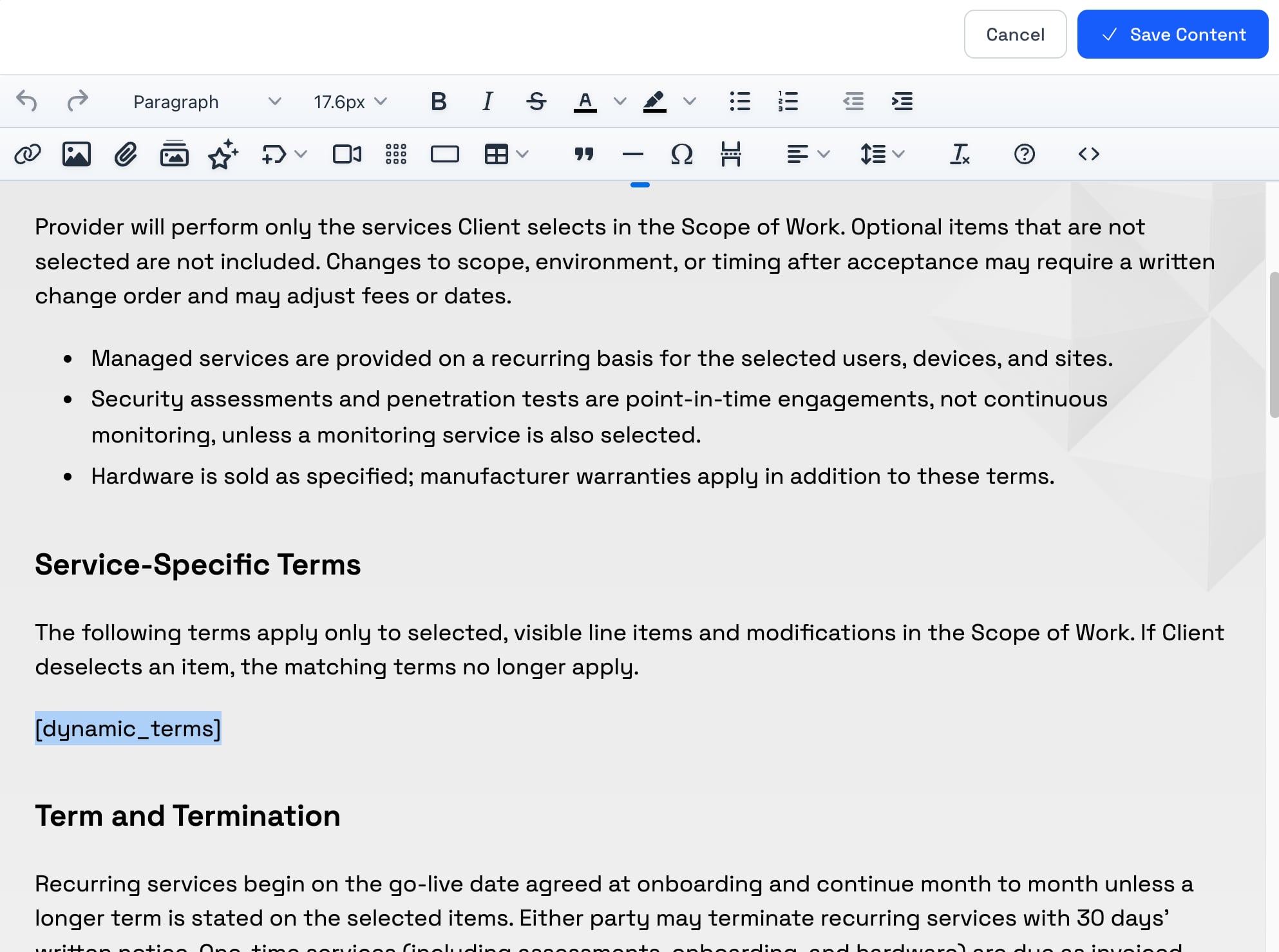
Open the content page where the terms should appear and choose Insert variable → Proposal → Dynamic Terms. That drops in one variable:
[dynamic_terms]
That is the whole setup. Keep your general terms (payment, termination, liability) written normally on the page around it. The variable is the slot where the service-specific terms land.
Does it have to be the terms page?
No. The variable works on any content page. It does need to be in the page body, though. Put it inside a line item, group, or modification description and it will not expand.
What ends up on the page, exactly
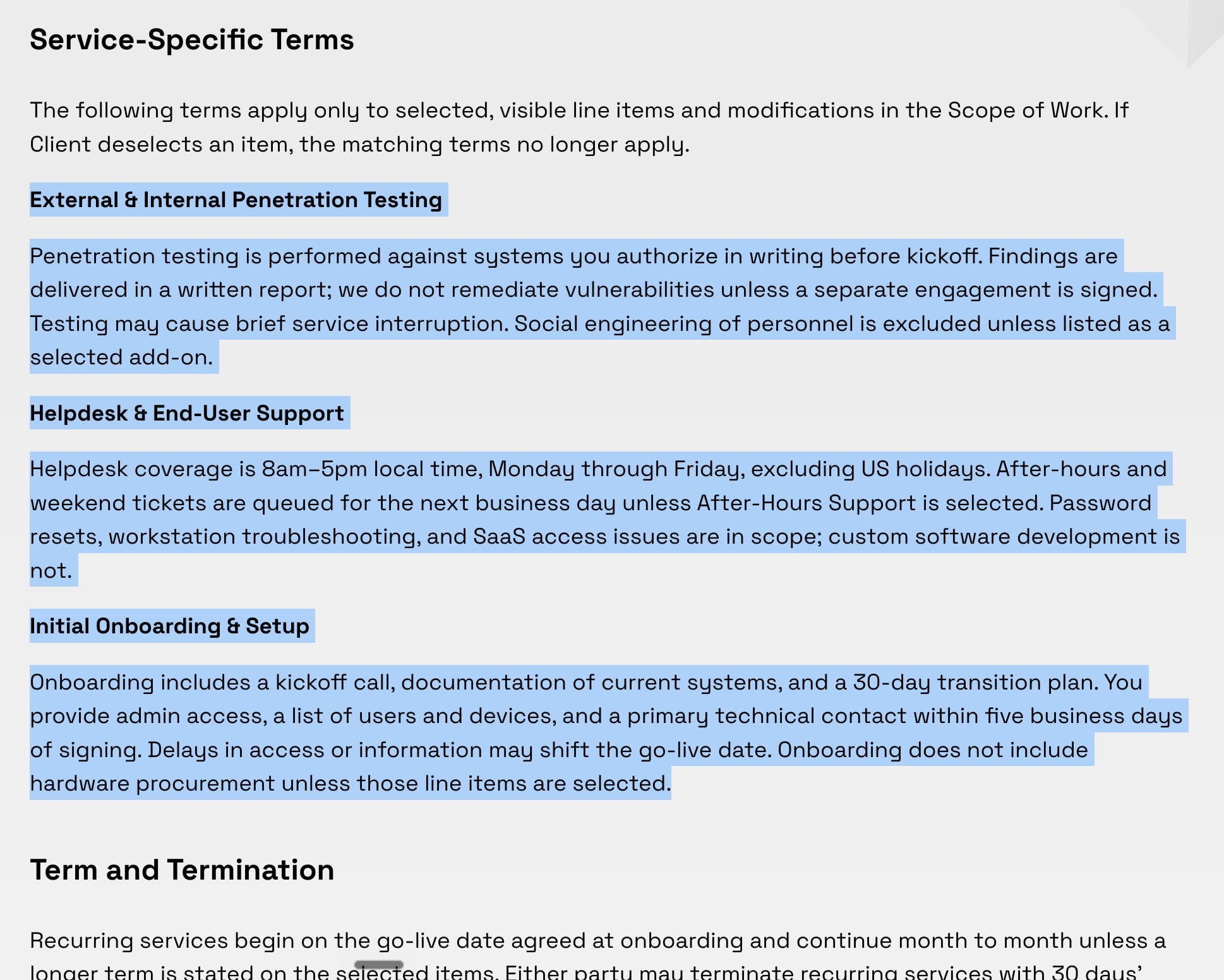
When the proposal renders, the variable is replaced with terms gathered from your Scope of Work pages, in order: each selected, visible group, then each of its line items, then that line item's selected modifications. So the contract reads in the same sequence as the pricing the client just approved.
What happens when the client unchecks an optional item?
Its terms drop off the page. Only selected items contribute, so an optional line item, optional group, or optional add-on has to actually be selected before its terms show up. Check it again and the terms come back.
What happens to terms on a hidden line item?
Hide a line item and its terms are skipped, along with the terms on its add-ons. One detail that trips people up: Hide Modifications is different. It hides the add-ons from view, but their terms still come through, because the client is still buying them.
What if a line item has no terms?
It is skipped. Leave the Terms tab empty and nothing is added for that item. No blank headings, no empty sections.
Save the terms once, reuse them everywhere
Save a service to your Library with its terms attached, and the approved wording travels with it. The next proposal that uses that service already has the right clause, written the way your team agreed to write it. Nobody has to remember which paragraph goes with which service.
If you turn the add-on off later, nothing you wrote is deleted. The terms stay saved on the items. The Terms tabs, the variable in the Insert menu, and the injected terms all disappear until you turn it back on, and the variable renders as nothing rather than showing up as raw text in the document.
If you build proposals with an AI assistant, it can do this part too. A connected AI agent can turn the add-on on, write terms on line items and add-ons, and place [dynamic_terms] on a page.
Who gets the most out of this
Agencies tend to use it for retainers and optional channels, where a skipped add-on like paid ads should not bring its approval and billing rules along. IT and MSP shops tend to use it for security testing, support coverage windows, and onboarding responsibilities, where each service has its own exclusions.
It pairs well with the other things that usually live on a terms page. Put the live proposal total into your terms instead of typing it, ask for initials after the sections that matter, and write a reactivation clause into the general terms around the variable.
Smart Pricing Table is interactive proposal software with live pricing tables for agencies, IT companies, and consultants. Dynamic Terms is what keeps the contract in step with those interactive pricing tables.
or start a free trial and try it yourself.
Explore more
Terms that follow what the client selected
Live totals clients can adjust
Save services with their terms attached
Frequently Asked Questions
How do I add terms to a line item in Smart Pricing Table?
Open the line item to reach Edit Line Item, click the Terms tab next to General, Modifications, and Advanced, write the terms for that service, and click Save. The Terms tab appears once an Admin or Owner turns on the Dynamic Terms add-on, which is included with the Business plan.
Where do I add terms to a modification or add-on?
Open the parent line item, go to the Modifications tab, click the gear on the modification to open Advanced Options, and use the Terms tab next to Internal Notes. Those terms only appear when the client selects that add-on.
What does the [dynamic_terms] variable do?
It is a placeholder you put on a content page with Insert variable → Proposal → Dynamic Terms. When the proposal renders, it is replaced with the terms from every selected, visible group, line item, and modification, so the page only covers the services the client chose.
What order do dynamic terms appear in?
The same order as the proposal. Terms are gathered from the Scope of Work pages in sequence: each selected group, then each of its line items, then that line item's selected modifications. The terms read in the same order as the pricing.
Do hidden line items include their terms?
No. Hiding a line item skips its terms and the terms on its modifications. Using Hide Modifications on a line item is different: the add-ons are hidden from view, but their terms still appear because they are still part of the deal.
Can I use [dynamic_terms] somewhere other than the terms page?
Yes, on any content page, as long as it is in the page body. The variable is not expanded inside line item, group, or modification descriptions.
What happens if a line item has no terms?
It is skipped. Items with an empty Terms tab add nothing, so the finished page has no blank headings or empty sections.
You might also like:
👉 Stop Typing the Proposal Total Into Your Terms by Hand
👉 Require Initials on Proposal Pages Your Clients Might Skip